
Run and monitor campaigns
The Outbound automation screen lists every campaign in the account. A summary across the top shows how many campaigns sit in each status, and Search and Filters narrow the list when it grows.
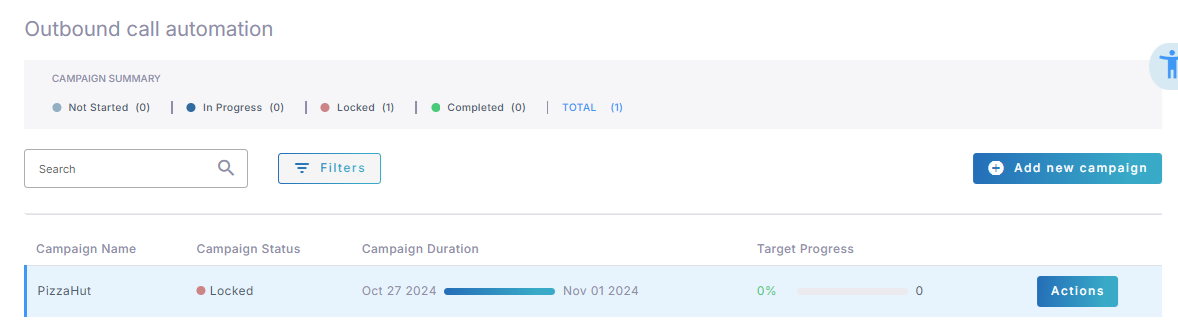
The list shows the following for each campaign:
| Column | What it shows |
|---|---|
| Campaign Name | The name you gave it. |
| Campaign Status | Where the campaign is in its life. See Campaign statuses. |
| Campaign Duration | The date range, with a bar showing how far through it the campaign is. |
| Target Progress | The share of targets already dealt with, and how many there are. |
| Actions | Edit Campaign and Delete Campaign. See Manage campaigns. |
Campaign statuses
The Campaign Status column reports where a campaign is in its life:
| Status | What it means |
|---|---|
| Not Started | The campaign is waiting for its start date. |
| In Progress | The campaign is live. It keeps this status outside its calling hours too. |
| Locked | The campaign is deactivated. It stays in the list but places no calls. |
| Completed | The campaign has run its course. A campaign with no targets also shows as completed. |
Lock and unlock a campaign
Locking a campaign pauses it, either mid-run or before it has started. Unlocking it resumes the calling. A new campaign is unlocked unless you lock it when you create it.
To lock or unlock a campaign:
-
In the Navigation pane, expand Hub+, and select Outbound automation.
-
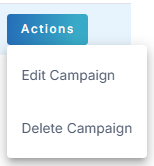
On the campaign, click Actions, and then select Edit Campaign.
-
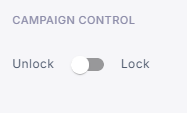
Under Campaign Control, set the toggle to Lock or Unlock.
-
Click Update.
A locked campaign is marked as such in the list.

Monitor campaign progress
The Statistics tab of a campaign counts its targets and its calls. Both counts refresh every minute, and both appear as a number and as a percentage.
To view the statistics:
-
In the Navigation pane, expand Hub+, and select Outbound automation.
-
On the campaign, click Actions, and then select Edit Campaign.
-
Select the Statistics tab.
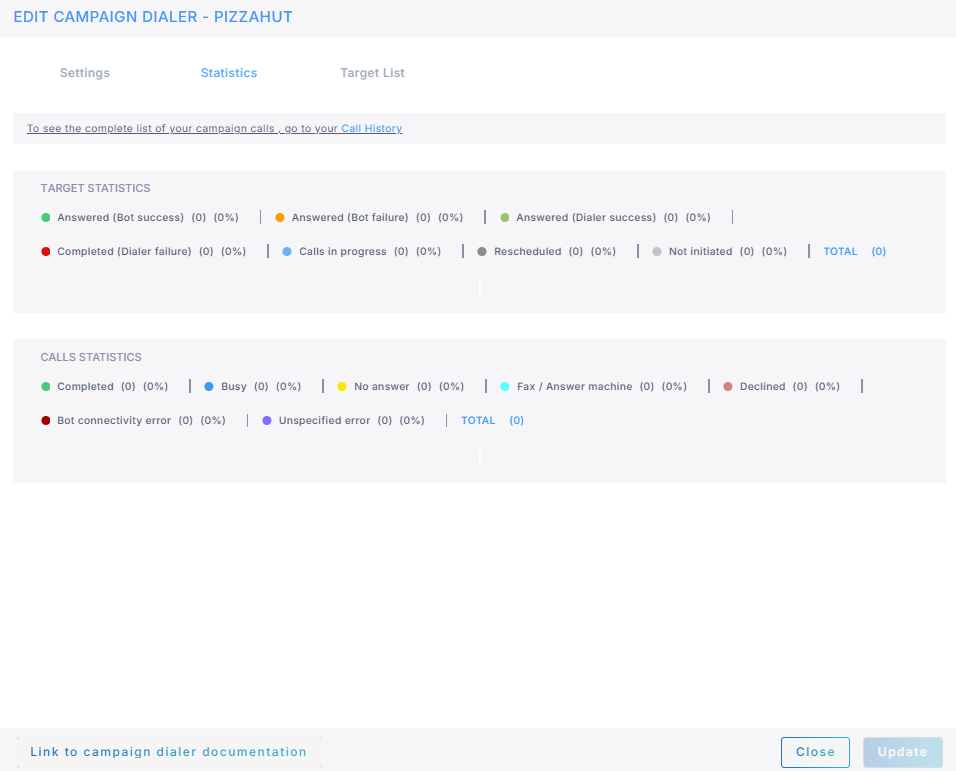
Target Statistics counts targets. Each target appears in exactly one row, and the first four rows hold the targets the campaign has finished with:
| Row | What it means |
|---|---|
| Answered (Bot success) | The call was answered and the bot completed its task. |
| Answered (Bot failure) | The call was answered but the bot failed part-way through. |
| Answered (Dialer success) | The call was answered, but the bot reported no outcome. |
| Completed (Dialer failure) | Every attempt failed to reach the person. |
| Calls in progress | The target is on a call now. |
| Rescheduled | An attempt failed and another is due. |
| Not initiated | The target has not been called yet. |
Calls Statistics counts call attempts, so a target that was retried appears more than once. Its rows are Completed, Busy, No answer, Fax / Answer machine, Declined, Bot connectivity error, and Unspecified error.
To see who was called, when, and the outcome of each call, click the Call History link at the top of the tab. See Call history and logs.